

Templates are designed to streamline your sales process, ensure consistency, and minimize manual effort. However, if they’re poorly designed, they can slow down reps, increase risk, and create confusion for clients. In PandaDoc, where templates are often the starting point for proposals, quotes, and contracts, even small mistakes can snowball into bigger problems.
Let’s break down the most common PandaDoc template mistakes companies make and how to fix them fast. Better templates mean better compliance, faster send times, and fewer errors at every step.
Mistake #1: Too Much Free-Form Text Editing

One of the biggest mistakes teams make is relying too heavily on editable text fields throughout their templates. While it may seem flexible, this opens the door for reps to accidentally change critical information, especially around pricing or legal terms.

When representatives manually type or copy and paste deal details, the margin for error increases. Even well-meaning team members can unintentionally remove, alter, or misplace sensitive sections. This can result in inconsistent messaging, compliance risks, or worse, incorrect pricing being sent to clients.
The Fix: Use locked content blocks for sections that shouldn’t be changed, like legal language, standard terms, and fixed pricing models. For editable sections, use tokens instead of blank text areas. Tokens pull data from your CRM or require specific input fields that guide the representative without allowing them to edit the structure.
By locking what matters and guiding what changes, you give reps just enough freedom to personalize without creating chaos.
Mistake #2: Missing Placeholder Tags or Tokens
Another common issue is sending out incomplete documents due to missing fields. If your templates don’t include placeholder tags, also known as tokens, critical information like client names, project scopes, or start dates may be skipped altogether.
This not only slows down deal velocity as reps go back and forth to fix missing information, but it also appears unprofessional to prospects who receive documents with blanks or outdated terms.
The Fix: Add required tokens for all essential fields. For example, tokens like {{ClientName}}, {{StartDate}}, {{ServiceFee}}, and {{RepName}} ensure every document is populated correctly before it can be sent.
You can even set these fields to be mandatory in PandaDoc, so the system won’t allow the document to go out unless they’re filled in. This creates a consistent and standardized workflow that saves time and reduces errors.
Mistake #3: Overloading Templates with Static Content
Many companies create a single, comprehensive master template and expect it to work for every client and every situation. The result is reps spending time deleting sections, scrolling through irrelevant pages, or forgetting to remove content that doesn’t apply. This confuses clients and weakens your brand experience.
Not every deal needs the full playbook. Providing every prospect with the same twelve-page document wastes their time and makes your offering appear bloated.
The Fix: Use conditional content blocks or dropdown selectors inside your templates. Conditional logic enables certain sections to display only when specific criteria are met, such as a pricing model, package type, or industry. Dropdowns help reps easily toggle between different copy blocks, such as switching between monthly and annual pricing.
By customizing content dynamically, your documents stay lean, relevant, and professional.
Mistake #4: Inconsistent Branding and Formatting
A PandaDoc template that isn’t aligned with your brand can give the impression that you look unprofessional. This often happens when templates are created ad hoc by different team members with inconsistent fonts, colors, logos, and styles.
This inconsistency dilutes your brand credibility and leads to unnecessary revisions before sending documents to clients.
The Fix: Set up brand-approved templates with your logo, color palette, font styles, and footer information built in. Use PandaDoc’s content library to store reusable brand elements, such as disclaimers, testimonials, and product blurbs, so that everyone can access the same source.
Having a visual style guide for templates helps keep documents on-brand across all departments, from sales to legal.
Mistake #5: Ignoring Automation and CRM Syncing
If you’re manually filling in each document for every new deal, you’re missing out on one of PandaDoc’s biggest advantages. Templates that aren’t connected to your CRM lead to double data entry, slower send times, and higher chances of errors.
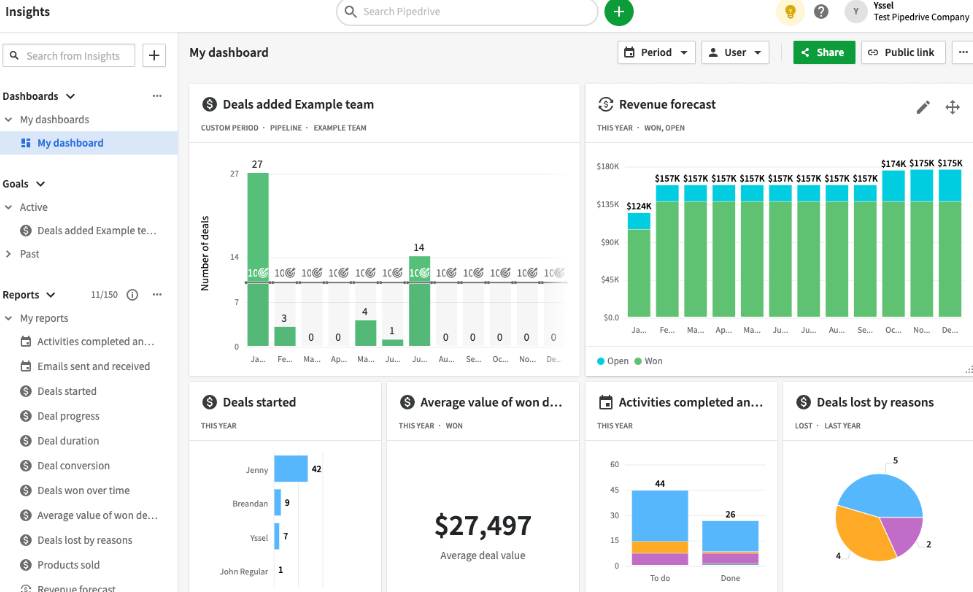
The Fix: Sync your templates with your CRM, whether it’s HubSpot, Salesforce, Pipedrive, or Zoho. Use merge fields to instantly auto-populate contact, company, and deal details.
This creates a hands-off workflow where reps simply select the right template, and the document is mostly completed before they even begin working on it. It saves time and ensures every proposal is accurate and aligned with the CRM record.
Mistake #6: Templates Without Role Assignments
Templates that don’t define signer roles can lead to confusion. Representatives might send the wrong document to the wrong person or miss critical steps, such as internal approvals or client countersignatures.
The Fix: Add pre-defined roles to your templates. For example, you can assign “Client Signer,” “Legal Reviewer,” or “Sales Rep” as roles. PandaDoc will prompt the sender to assign the correct people to each role when creating a document, ensuring a smooth signing process.
Roles also enable approvals and workflows that prevent the wrong documents from going out.
Better Templates, Better Sales Outcomes
PandaDoc templates can be your sales team’s best friend or their biggest headache. Poorly built templates create friction, errors, and delays. However, well-optimized templates improve consistency, reduce risk, and expedite your deal flow.
By addressing common issues, such as excessive editable text, missing tokens, overloaded content, off-brand design, inadequate CRM integration, and unclear roles, you can create a streamlined document process that scales with your team.
Remember, your templates are not just documents. They’re extensions of your sales process, your brand, and your promise to the customer. Make them work for you.


